

KN Manager
Coming Soon
Purchasing will open soon.
Build your KRONOS library around the way you play.
Bring your favourite sounds from compatible donor SETs into your own collection. Load your destination SET into Library A and your donor SET into Library B, then organise, transfer and prepare your sounds through one clear, side-by-side workflow.
Move sounds with their supporting resources
Transfer Programs, Combinations, Drum Kits, Wave Sequences, Multisamples and samples from B to A. KN analyses supported dependencies, relocates the required resources and preserves the sound’s programmed settings through supported transfers.
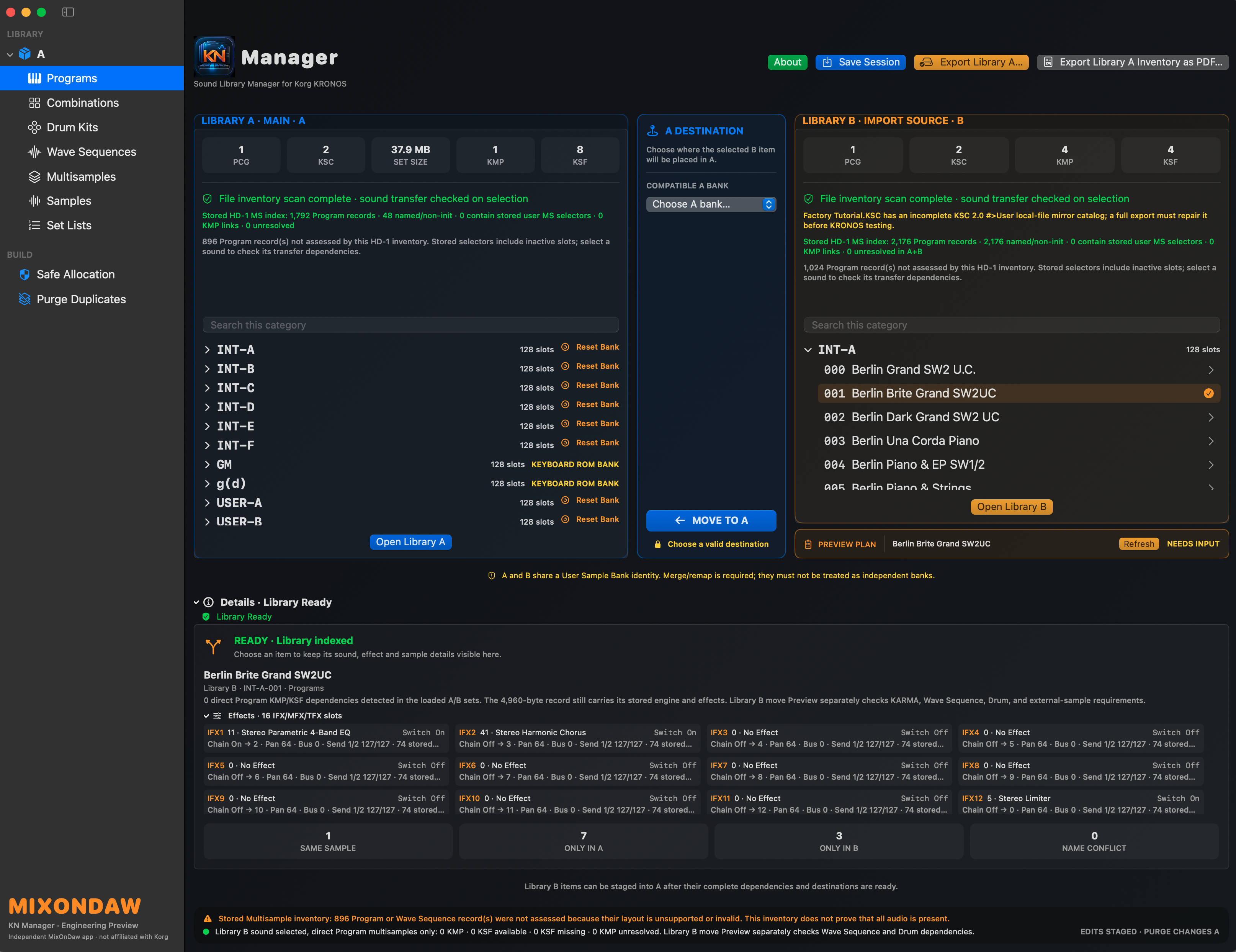
Automatic destinations, with your choice
KN selects a compatible Init slot where available. Choose another compatible location when needed, or explicitly approve replacing an existing sound after reviewing the warning.
Combination transfers with clear Program placement
Review the Programs used by a Combination before confirming the move. See which resources will be copied or reused, and adjust eligible Program destinations to suit your own bank layout.
Reuse matching sounds
Already in A and Already Staged messages help avoid unnecessary copies. Matching is based on resource identity rather than the name alone, so renaming a moved sound does not automatically make it a different sound.
KARMA GE and resource decisions
Review GE, template and sample requirements during supported transfers. When KN offers a continuation choice, you decide whether to proceed without unavailable GE data or missing audio, with the consequences made clear. Protected EXs references still require the corresponding library on your KRONOS.
Multisample management
Move Multisamples with their associated sample data, including supported stereo pairs.
Intelligent duplicate-sample Purge
Find eligible duplicate samples through audio fingerprints. Listen to the retained sample and its duplicates, select individual groups or use Select All Purgeable, then review the purge. KN keeps the main copies, removes selected eligible duplicates and updates supported references, reducing redundant sample data.
Whole-bank initialization
Prepare an entire bank with Reset Bank instead of initializing sounds individually. Review the confirmation and initialize the bank in one operation. You can also reset a single sound when that is all you need.
Rename, reset and Undo
Organise sound names, initialize selected sounds or whole banks, and undo supported staged changes before saving your work.
Detailed sound information
Expand the information panels to inspect dependencies and effects. Clear status messages identify missing or unresolved resources before you proceed.
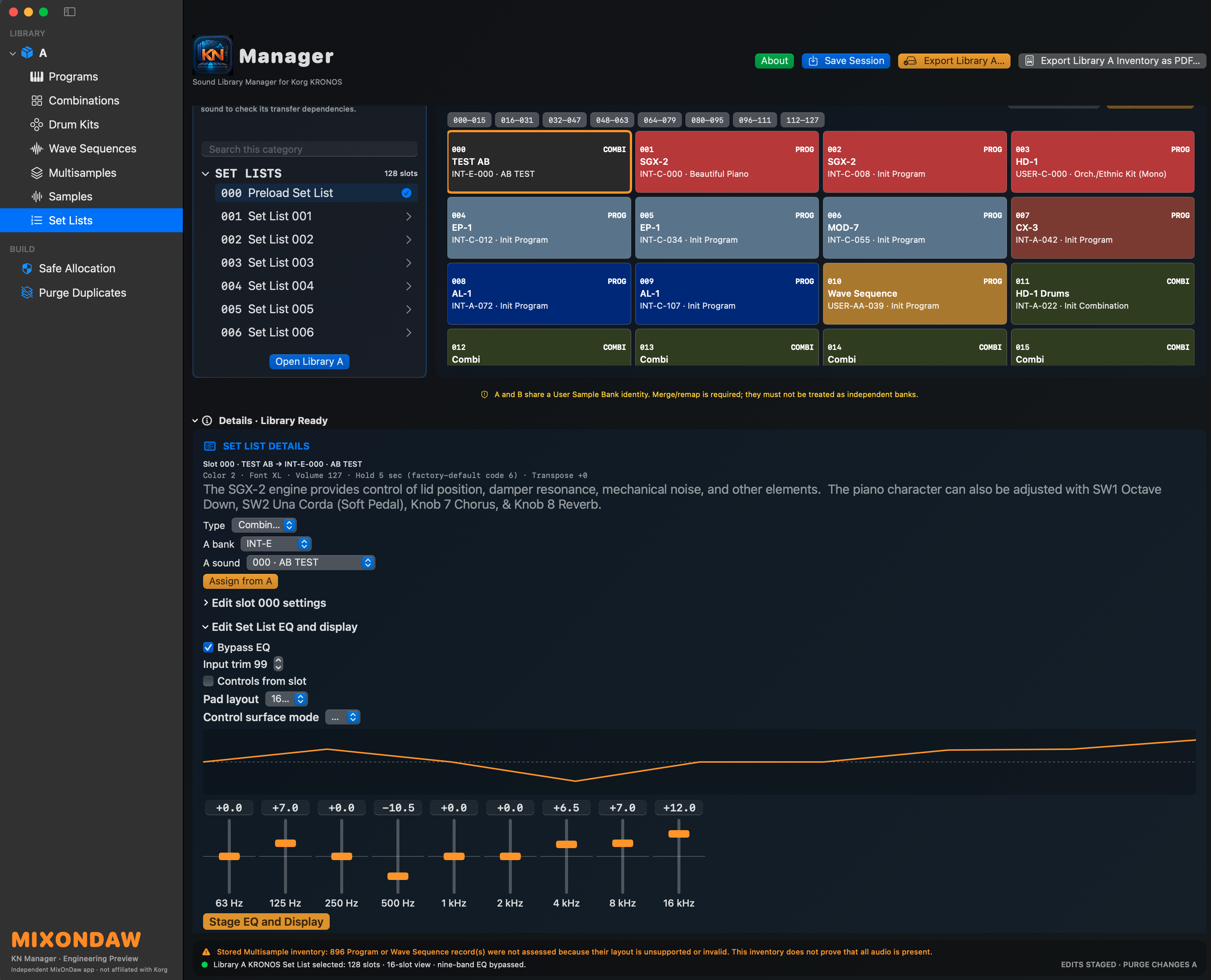
Set Lists for your workflow
Assign Programs or Combinations to slots, rename them, choose colours, edit comments and text size, and adjust volume, transpose and hold settings. Shape the Set List with nine-band EQ, trim, bypass and display/layout controls, then stage your changes.
Save, resume and export
Save a .KN session checkpoint to continue later. Export a complete SET folder containing its PCG, KSC and required sample data, while preserving your original source files. Reopen the exported SET to inspect the result.
Library inventory
Generate a PDF inventory of the loaded PCG snapshot for an organised overview of its contents.
System requirements
- Operating system
- macOS 14 or later — Intel and Apple Silicon
- Connection
- Continuous internet connection during use
Activation and Licence Terms
Activate KN Manager on the machine you intend to use. If you replace that machine, you must deactivate KN Manager on the previous machine before activating it on the new one.
Each user is permitted a maximum of three deactivations in total. Each time you deactivate a previous machine to move to a replacement machine, you use one of these three deactivations. This is a total allowance per user.
A continuous internet connection is required while using KN Manager. Licences are non-transferable and may not be transferred to another user. Licence sharing or misuse will result in suspension of the licence.